Builder
Lay out the conversation your agent will have, test it, then publish it.
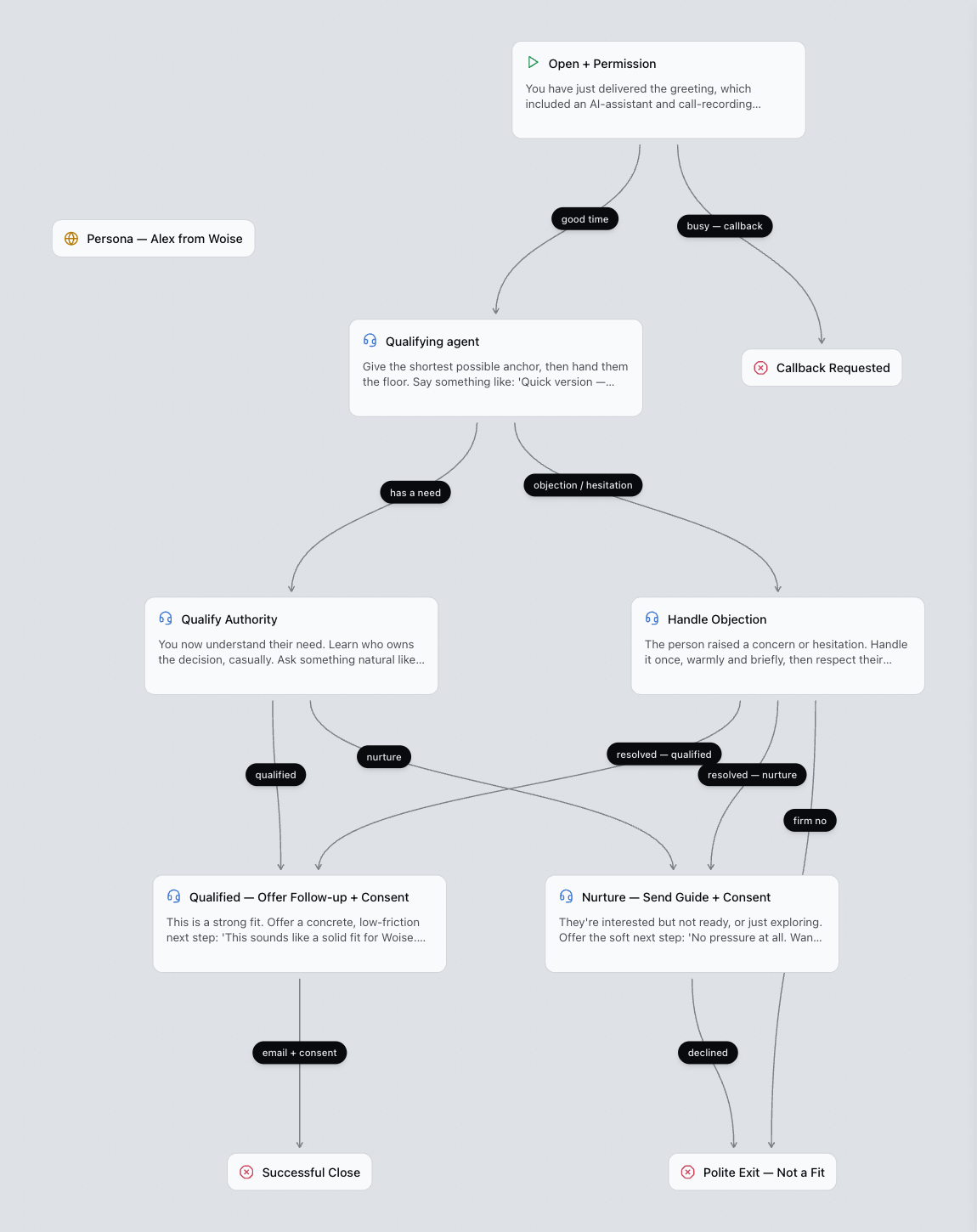
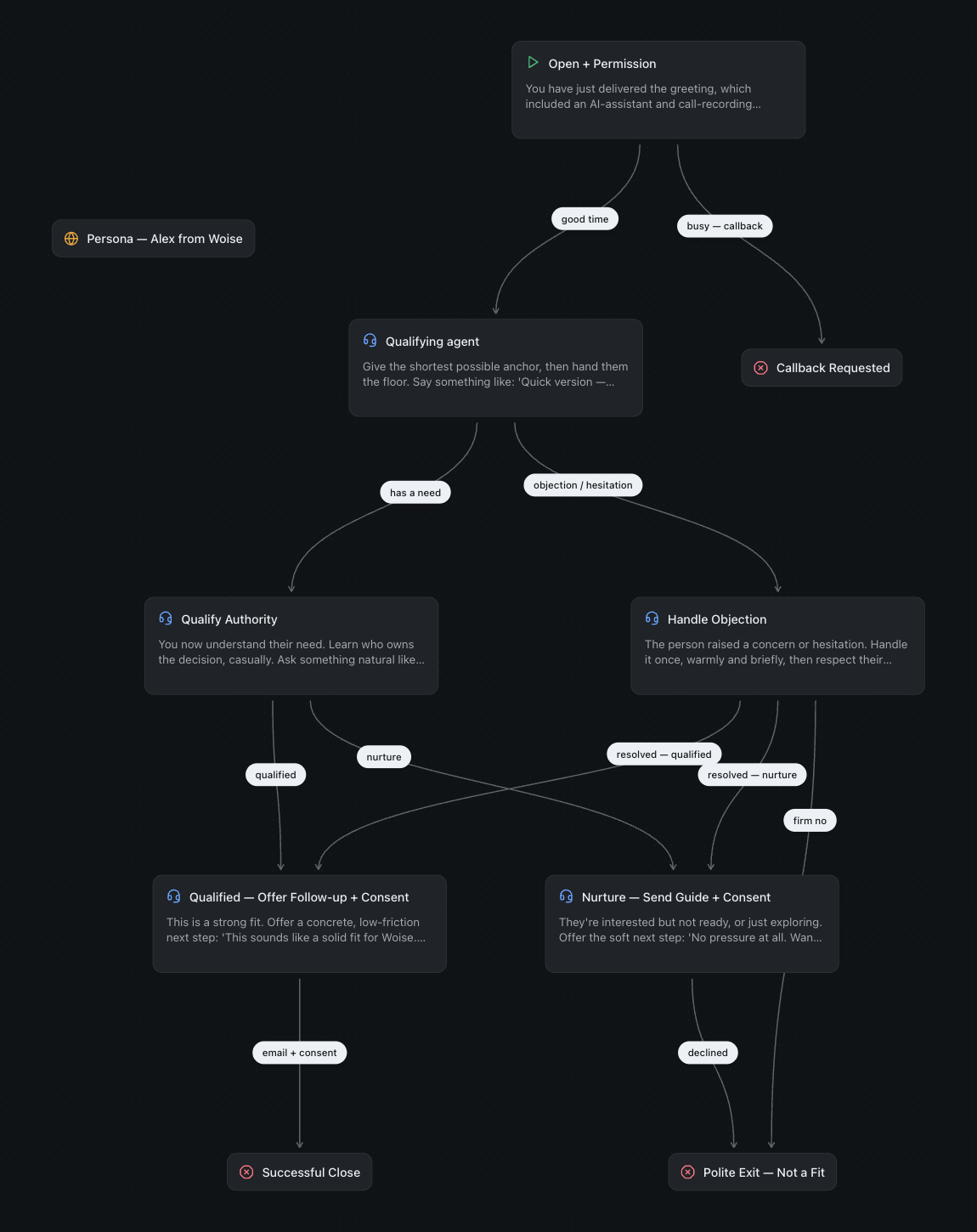
Open an agent from the Workflow page to reach its canvas. The steps and arrows you draw there are the agent: change them, save, publish, and the next conversation uses the new version.
On the canvas
- Step: one part of the conversation, such as the greeting, a question, or the goodbye. Steps covers every type.
- Arrow (a pathway): the rule that moves the conversation from one step to the next. It fires when the agent judges its Condition met, or on a keypad digit.
- Start: the one entry point. Every agent has exactly one, and it cannot be deleted.
- Persona: tone and standing rules added to every Agent and Global step. No arrow touches it.
Building an agent
A blank agent starts with one Start step.
- Right-click the canvas and pick a step type from the Add node menu.
- Drag from one step's handle to another to draw an arrow, then open the arrow to name it and write its Condition.
- Open a step to write its prompt and add what it needs: tools, documents, variables to extract.
- Select Save. Saving keeps a draft; it does not change what people reach.
To delete a step, select it and press Backspace. The Start step cannot be deleted.
If something is wrong, a banner at the top of the canvas lists the errors. It also warns when a number or campaign this agent uses is on a carrier that cannot do something a step needs, such as keypad input or a transfer.
The header
| Control | What it does |
|---|---|
| Version chip, next to the name | Opens Versions: the draft, the live version and older ones |
| Model | Opens AI models: the language model, the transcriber and the extraction model this agent uses |
| Voice | Opens the Voice dialog. See Voices |
| Price | The agent's cost per minute in credits, as it is set up now |
| Files | Opens Files > Chat media in a new tab. See Files |
| Test | Ways to try the draft (below) |
| Save / Publish | Save the draft; make it live |
Settings that apply to the whole agent, such as chat, call handling and analysis after the call, live on its settings page. Open it with the Workflow settings button on the agent's card on the Workflow page.
Testing
The Test menu runs your draft, never the published version:
- Test voice talks to the agent in this browser. Select Start call on the run screen.
- Call my phone places a real call to a number you enter.
- Test chat lets you message the agent, and shows the buttons, links and cards a step sends. See Chat.
- Run simulation has an automated persona talk to the agent so you can review the result.
The menu stays disabled while the agent has unsaved changes or errors. Save and fix the errors first.
Draft and published
Edits are held as a draft until you select Publish. The published version keeps serving every real conversation while you edit. See Versions.
Next steps
Common questions
What is Woise?
Woise lets you build AI agents that answer and make phone calls and chat on your website. You lay out the conversation on a visual canvas, try it in your browser, then connect it to a phone number.
Do I need a phone number to start?
No. You can build and test an agent in the browser without one. When you are ready, connect a phone number and choose which agent answers it.
How does billing work?
You pay for the minutes your agents use, from your credit balance. There are no seat fees and no per-agent fees, so an agent that is not taking calls costs nothing.
Which languages can an agent speak?
Agents can listen and speak in more than 40 languages, including English, Spanish, Hindi, Tamil and Arabic. You pick the language and the voice for each agent.
Can an agent connect to my CRM or calendar?
Yes. An agent can look things up and make changes in 26 apps, such as Salesforce, HubSpot, Google Calendar, Slack and WhatsApp, during the call. You connect each app once.
Do I need engineers to build an agent?
No. Everything is built in a visual editor, so you can create and change an agent without writing code. If your team prefers code, there is also a REST API and an MCP server.
What happens to call recordings and transcripts?
Every call keeps a transcript and its outcome, and audio is only recorded if you turn it on. Only people in your account can see your calls, and your account lives in the region you chose when you signed up.
What do I have to set up or run?
None. We run the speech, the language models, the recordings and the phone connections, and scale them with your call volume. There is nothing for you to set up or keep running.
How do I reach the team?
Email contact@woise.ai, call or WhatsApp +91 83412 34080, or use the form on our contact page. A person reads every message.
Still stuck? Talk to our team.